
EXE
How to Sell Old Laptops in the UK
Before selling an old laptop, identify the model and specification, check its condition and plan how to protect your data. This guide explains the preparation and handover steps. Whether a buyer can make an offer depends on the machine and its condition; a paid sale is not guaranteed.
What to Check Before Selling Your Old Laptop
Start with the exact model, processor, memory and storage, then check the screen, keyboard, battery and any faults. These details help a buyer assess the laptop; age alone does not tell you what it is worth. Use our laptop battery-health guide if you need help describing the battery.

Compare the Options for Your Laptop
A direct buyback enquiry, a private marketplace sale and a retailer trade-in offer different levels of effort and convenience. Compare any offer, fees, handover arrangements and payment terms before deciding which route suits you.
For a fuller comparison of private sale, trade-in and buyback, see where to sell an old laptop. Here, start with the details and preparation you need before approaching a buyer.
We Make It Simple for Local Sellers
If you’re based in Redhill, Merstham, or nearby Surrey towns, the whole process gets even easier. At EXE, we’ve designed our service to take all the usual faff out of selling your old tech.
Choose a handover route that suits your device. You can arrange an appointment at EXE in Redhill or agree UK post-in with our team. Collection is considered for eligible higher-value devices and suitable batches, and must be agreed in advance.
To ask EXE about an offer, use our laptop and workstation selling page. Gaming laptops, creator machines and company batches also have dedicated enquiry routes there.
Ready to find out whether EXE can make an offer? Send a free, no-obligation enquiry with the model, specification and condition. Our team reviews each enquiry individually through the laptop enquiry form.
Prepare Your Laptop Before Selling
Record the specification and condition before resetting the laptop, then back up and verify the files you want to keep. Our laptop sale-preparation checklist covers accounts, company management, data removal and the items to include at handover.
For a work laptop or inaccessible storage, agree the data-handling requirements with the authorised owner or IT team before making changes. Preparation and inspection are separate steps; a reset does not confirm that a laptop will be accepted for purchase.

Back Up Everything That Matters
Right, first things first: your files. Your laptop is probably home to years of photos, important documents, and maybe a few questionable music downloads from your uni days. Losing all that would be a nightmare, so backing everything up isn't just a suggestion—it's essential.
You've got a couple of straightforward options here:
- Cloud Storage: Services like Google Drive, iCloud, or Dropbox are brilliant for your most important folders. It’s often as simple as dragging and dropping your files into the cloud folder right on your desktop.
- External Hard Drive: Got a huge library of videos or high-res photos? An external hard drive is your best friend. They’re relatively cheap these days and give you a physical copy of your data that you control.
Before resetting or erasing the laptop, make a backup and check that you can open the files you need. If a fault prevents you from accessing them, pause the reset and seek suitable technical advice before doing anything that could erase the drive.
Prepare Your Data Before Handover
Deleting files or emptying the recycling bin is not sufficient preparation. Back up what you need, then follow the instructions for your exact laptop, operating system and included storage drives.
For ordinary Windows resale, Microsoft recommends Remove everything with Clean data enabled. This makes file recovery harder; it is a consumer reset, not a certified erasure process. If you need specialist assurance or cannot access a faulty drive, agree suitable data-removal arrangements before handover.
The correct steps depend on the model and operating system. Check your backup before beginning, and remove your own removable storage.
For Windows 10 & 11 Laptops:
- On Windows 11, open Settings > System > Recovery. On Windows 10, open Settings > Update & Security > Recovery.
- Find Reset this PC.
- Select Reset PC or Get started, depending on the Windows version.
- Choose Remove everything, then enable Clean data in the reset settings. Review which drives will be included.
- Follow the remaining prompts and allow the reset to finish without interruption. Check Microsoft's reset instructions first, including backup and BitLocker recovery-key requirements.
For macOS Laptops (MacBooks):
- Check Apple's Mac sale-preparation instructions for your hardware and macOS version.
- On supported Apple silicon or T2 Macs running macOS Monterey 12 or later, use Erase All Content and Settings.
- If that feature is unavailable, follow Apple's account sign-out and macOS Recovery steps.
- Use the model-specific Disk Utility erasure instructions linked from Apple's guide, rather than assuming every Mac follows the same process.
- Reinstall macOS if instructed, then leave the Mac at setup for its new owner.
Don't Forget to Sign Out
Follow the manufacturer's account-removal sequence before handover. Signing out alone does not remove all local data; it must be combined with the appropriate reset or erasure process.
Be sure to log out of:
- Apple or Microsoft account: Complete the manufacturer's steps for removing the device from your account. Check any remaining management or ownership locks.
- iTunes, Google Chrome, and other apps: Disconnecting these accounts stops any lingering sync data from being accessible.
If you are unsure whether the reset completed or whether a storage drive was included, resolve that before handing over the laptop.
A Good Clean Makes a Great Impression
Finally, give your laptop a proper physical clean. It might sound trivial, but you’d be amazed at how much a sparkling device can boost its perceived value. First impressions count.
Focus your efforts here:
- The Screen: Use a microfibre cloth and a proper screen-safe cleaning spray to get rid of all those smudges and dust particles.
- The Keyboard and Trackpad: A can of compressed air works wonders for blasting out crumbs from between the keys. Then, wipe the keys and trackpad with a slightly damp cloth.
- The Casing: Give the lid, base, and the areas around the ports a good wipe to remove fingerprints and grime.
A clean, well-presented laptop screams "well-cared-for," which can often translate directly into a better offer. With all that done, you’re in the perfect position to get a fast, accurate quote. You can kick off our simple process by filling out our laptop enquiry form.
How to Honestly Grade Your Laptop's Condition
Describe cosmetic wear and working condition separately. The details help a buyer assess the laptop, but the final condition and offer are confirmed after inspection.
EXE’s condition grading guide describes Excellent, Good and Fair as fully working grades with different levels of cosmetic wear. Damaged describes physical damage. Tell us about functional faults separately, even when the outside looks excellent.
In the enquiry form, choose New / sealed where appropriate, or Faulty / damaged when something does not work. Use Not sure if you need help and describe what you can check. Report battery wear or charging problems explicitly rather than treating them only as cosmetic marks.
Your Quick Self-Check Guide
To figure out where your laptop fits in, grab it and give it a good five-minute inspection. Our top tip? Do this in a well-lit room so you can catch any subtle marks you might otherwise miss.
Start with the screen. With the laptop switched off, tilt it and look at the display from different angles. Can you see any scratches? Next, turn it on with a plain white or black background to check for dead pixels or bright spots. Even a single faulty pixel can affect the final grade.
Now, give the body a thorough once-over. Run your fingers along the edges and corners to feel for any dings, dents, or cracks—these are common signs it’s taken a tumble at some point. Pay close attention to the hinge area, too. Make sure it opens and closes smoothly without any creaking or stiffness.
Testing What’s Under the Hood
Looks are one thing, but does everything actually work? It’s time to test the functionality.
Test the keyboard and trackpad. A sticky or dead key is a functional fault, not simply cosmetic Fair wear: choose Faulty / damaged and describe it. Check whether the trackpad registers clicks and normal gestures, and mention any problem.
After that, plug something into every port. Check the USBs with a memory stick, pop some headphones into the audio jack, and connect the charger to see if it powers up. A faulty port is a definite issue that needs to be declared. Finally, what’s the battery life like? Does it still hold a decent charge, or does it die the second you unplug it? This is a huge factor in determining its value.
Describe weak batteries, marks and faults in the enquiry. These details help EXE review the machine and discuss a possible offer; acceptance and the final offer depend on inspection and agreement.
And remember, the internal specs are just as important as the physical condition. The processor (CPU), amount of RAM, and storage size (SSD or HDD) are the core components that dictate your laptop's base value. A high-spec machine with a few scratches could still be worth much more than a pristine-looking but older, slower model.
For sellers in Redhill, Merstham and the surrounding area, sharing the model and condition first helps us assess the laptop and agree a suitable handover. Redhill drop-off is by appointment; any collection must be agreed and is subject to eligibility.
Laptop Condition Self-Assessment Checklist
Use this checklist to describe the laptop before requesting an assessment. Our device condition guide explains the condition categories. A condition check helps describe the machine; it is not a price estimate.
| Component to Check | What to Check | Wear or Faults to Describe |
|---|---|---|
| Screen | No scratches, cracks, or dead pixels. Bright and clear display. | Visible scratches, pressure marks, dead pixels, or cracks. |
| Body & Casing | Only light, minor scuffs. No dents, cracks, or deep scratches. | Noticeable dents, cracks in the plastic, deep scratches, or missing parts. |
| Keyboard & Trackpad | All keys are responsive and present. Trackpad works smoothly. | Sticky or missing keys, worn-out key letters, unresponsive trackpad. |
| Ports & Battery | All ports function correctly. Battery holds a reasonable charge. | Faulty ports (USB, HDMI, etc.), battery dies quickly or won't charge. |
Once you’ve done your checks, you'll have a much better idea of what to expect. This honest assessment is the foundation for a quick, smooth, and successful sale.
Ready to see what your device is worth based on its condition? Get your free, no-obligation quote by completing our straightforward laptop enquiry form now.
Finding the Best Place to Sell Your Laptop
Right, so you’ve backed up your files, wiped the hard drive clean, and given your laptop an honest appraisal. Now for the big question: where do you actually sell it?
In the UK, you’ve got a few solid options, and each one offers a different balance of convenience against cold, hard cash. The choice really comes down to what you value more – getting every last quid out of the deal, or having a quick, painless experience.
Let's walk through the main contenders so you can figure out the best home for your old machine.
Specialist Buyback Services: A Manual Assessment
A specialist buyback enquiry lets a business assess the laptop from the details you provide. EXE reviews the model, specification, condition and faults individually before confirming whether an offer is possible. You do not need to create a public marketplace listing to make an enquiry.
The process is refreshingly straightforward:
- You pop your laptop's details into an online form.
- Send a free, no-obligation enquiry. Our team reviews the specification and condition and confirms whether we can make an offer.
- If you want to proceed, arrange an appointment for Redhill drop-off or agree UK post-in. Collection is considered for eligible higher-value devices and suitable batches.
- After inspection and agreement of the final offer, EXE pays by bank transfer. Confirm the expected timing with the team.
If you live near Redhill, you can arrange an appointment to meet our team and hand over your laptop. Ask about collection if you have a higher-value device or a suitable batch; eligibility and the arrangements are confirmed before handover.
A direct buyback enquiry lets you discuss the device, any offer and the handover with a real person. Acceptance is assessed individually, and payment follows inspection and confirmation of the agreed offer. Plan your data removal before handing over the laptop.
Online Marketplaces: A Sale You Manage
You can also list a laptop on eBay, Gumtree or Facebook Marketplace. Compare likely proceeds after any fees, postage and other costs, as well as the work involved in managing the sale.
But, and it’s a big but, that potential reward comes with a serious dose of effort and risk.
When you sell on a marketplace, you’re not just a seller. You’re the photographer, the copywriter, the customer service agent, and the logistics manager. You need to take great photos, write a detailed and persuasive description, and brace yourself for a flood of questions – many from people who have no intention of actually buying.
Worse, you’re opening the door to scams, payment disputes, and buyers who might claim the laptop arrived broken. While most sales go smoothly, plenty of sellers have horror stories about fraudulent payments or people returning a completely different, busted machine.
This quick visual guide can help you assess your laptop’s condition, which is vital information no matter where you decide to sell.
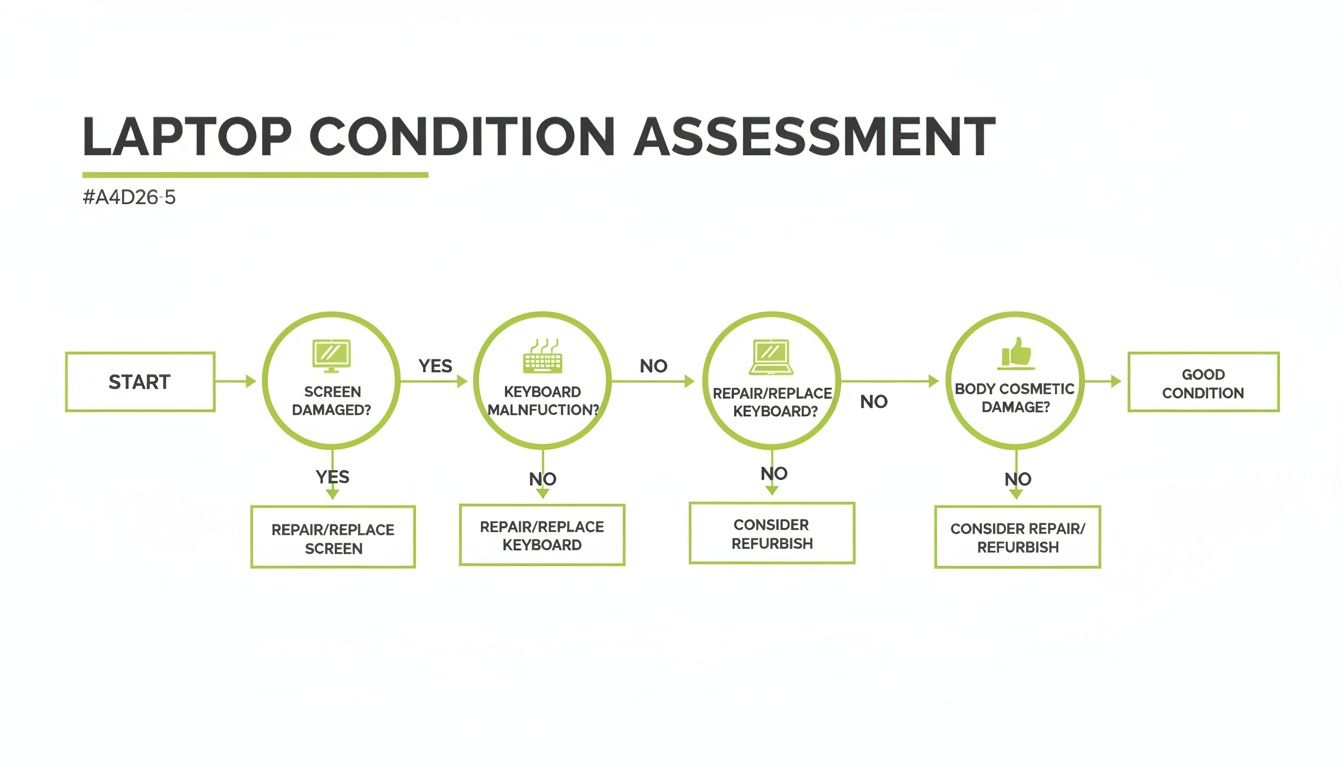
Think of it as a checklist. Running through the key points – screen, keyboard, and casing – gives you a clear idea of whether you’re good to go or if a repair might be needed first.
Manufacturer Trade-Ins and High-Street Shops
Retailer and manufacturer programmes are another option. Check current model eligibility and terms directly with providers such as Apple Trade In or CeX before deciding whether the route suits your laptop.
Check the specific offer and its terms. The amount, eligibility and payment method vary by provider and device; a cash offer and store credit are different options. Compare the actual figures rather than assume one route always pays more.
Ask how condition is assessed and whether the quoted amount can change after inspection. Make your decision using the offer, payment method and handover arrangements that suit you.
Making the Right Choice for You
So, what's the verdict? Honestly, the best place to sell your old laptop is the one that fits your priorities.
- Go for a specialist buyback service like EXE if: You prefer a personal assessment, an agreed handover and payment by bank transfer after inspection and agreement of the offer.
- Try an online marketplace if: You’re prepared to put in the work for a potentially higher price and are comfortable navigating the risks involved.
- Think about a trade-in if: You're buying a new device from the same place and value immediate convenience over the maximum cash return.
If a personal assessment suits you, request a laptop offer from EXE. The enquiry is free and carries no obligation to sell. Our team reviews the details before discussing an offer and agreed handover.
Agree the Handover, Inspection and Payment
You’ve sorted your laptop, wiped the data, and landed a great offer. Fantastic! Now for the final straight: getting it safely from your hands to ours and the money into your bank account. Whether we’re collecting it or you’re posting it, this part is all about a smooth and secure handover.
Arrange an appointment for drop-off at EXE in Redhill or agree UK post-in with our team before sending the laptop. Collection may be available for eligible higher-value devices and suitable batches; we will confirm the arrangements with you in advance.
Packing Your Laptop for a Safe Journey
If you're a bit further away or just prefer the convenience of posting, that's absolutely fine. The most important thing is to pack your laptop properly so it survives the journey without a single scratch. A few minutes of care here makes all the difference.
Here’s how to pack it like a pro:
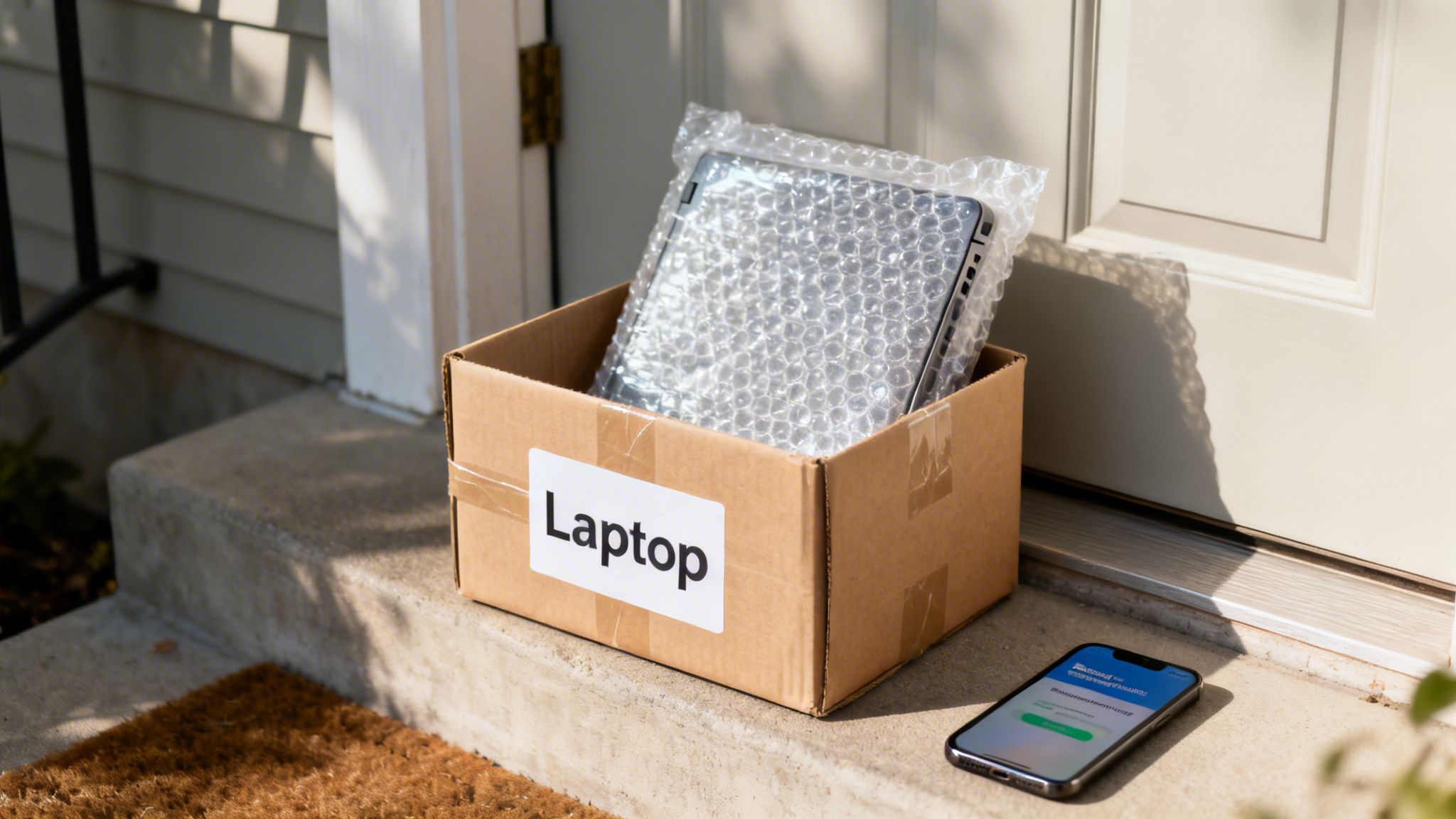
- Box it up: The original box is always the best bet. If that’s long gone, grab a sturdy cardboard box that leaves a good couple of inches of free space around the laptop.
- Wrap it tight: Give it a generous hug with bubble wrap – at least two layers all around is a good rule of thumb. A bit of tape will keep it from unravelling.
- Fill the voids: You don't want the laptop sliding about. Pad out any empty space with crumpled newspaper, more bubble wrap, or foam inserts until it's snug.
- Seal and shake: Use strong packing tape to seal every opening. Before you slap a label on it, give the box a gentle shake. No rattling? Perfect.
For your own protection, it’s well worth using a tracked service. This gives you proof of delivery and lets you see exactly when it’s been received, giving you total peace of mind.
Confirming the Offer and Payment
Once we have your laptop, the last thing to do is get you paid. When you sell to a direct buyback company, you skip the uncertainty of marketplace payments. There's no waiting for a stranger to release funds or dealing with platform fees.
EXE pays by bank transfer after the laptop has been inspected and the final offer has been agreed with you. We will confirm the next steps and discuss the expected payment timing with you.
If inspection finds a difference from the description, we will explain it and discuss any revised offer before you decide whether to sell. Read what happens after you accept an offer for the handover and inspection steps.
A Quick Note on ID Checks
A buyer may ask for identity or ownership evidence. Ask what is required and how it will be handled before arranging the handover. Do not include identity documents, passwords or recovery keys in the laptop enquiry form.
Our goal is simple: make the entire experience feel safe, transparent, and rewarding from start to finish. You should feel confident from the moment your laptop is boxed up to the second you see the payment land in your account.
Got Questions About Selling Your Laptop? We’ve Got Answers
Even with a step-by-step guide, you might still have a few things on your mind. Selling old tech can feel like a bit of a leap, so let's tackle some of the most common questions we hear from people just like you.
Is My Ancient Laptop Worth Anything at All?
An older laptop may be considered for a purchase, but age alone cannot establish its value. The model, specification, condition and demand matter. Some machines will not qualify for a paid offer.
Send the details through the laptop enquiry form for an individual assessment. If a paid sale is unsuitable, our electrical recycling guidance explains how to find another appropriate route.
What If My Laptop Is Broken?
A faulty laptop may still be considered, depending on the model and damage. Describe the symptoms and any missing parts without guessing the repair. Our guide to selling a broken laptop explains which details help a buyer assess it.
Ask EXE to confirm whether the device can be considered before travelling or posting it. Disclose the faults in your enquiry and agree any handling or data requirements with the team.
How Do I Know I'm Getting a Fair Price?
This is a really important question. A "fair price" is simply one that reflects the laptop's current market value, taking into account its age, model, specs, and condition. Professional buyers use live market data to figure out what a specific model is worth on the second-hand circuit.
The key to feeling good about the price is transparency. A trustworthy buyer will give you a clear quote based on the details you provide and will stick to it, assuming the laptop arrives as described. A good way to sense-check the offer is to look up what similar models have actually sold for on eBay, then subtract their fees and postage costs.
Is It Safe to Sell My Laptop?
Prepare your data before selling: confirm your backup, remove linked accounts and follow the manufacturer's reset instructions. For ordinary Windows resale, use Remove everything with Clean data enabled. Discuss specialist erasure requirements or inaccessible storage before handover.
Choose a buyer whose identity and terms you can check, and ask how your data will be handled before handover. EXE offers Redhill drop-off by appointment or agreed UK post-in; collection is considered for eligible higher-value devices and suitable batches.
How Long Does It All Take?
The time depends on the enquiry, handover and inspection. EXE reviews your details personally, agrees a suitable handover with you and pays by bank transfer after inspection and confirmation of the offer. Ask our team about the expected timing for your device.
Ready to enquire about selling your laptop? EXE assesses each device individually. Send the model, specification, condition and any faults through our free, no-obligation laptop enquiry form.